
Download KDE Connect for PC and Mobile
Link your phone and computer over Wi-Fi. Share files, sync notifications, control media playback, and use your phone as a wireless input device.
What Is KDE Connect?
A free, open-source tool that bridges the gap between your phone and computer over your local Wi-Fi network.
Your Devices, Working Together
KDE Connect is a multi-platform application built by the KDE Community that lets your phone and computer communicate directly over your local Wi-Fi network. Instead of emailing yourself files or reaching for your phone every time it buzzes, KDE Connect puts everything within reach from whichever device you happen to be using.
The app runs on Linux, Windows 10/11, macOS, Android, and iOS. Once paired, your devices stay linked automatically whenever they share the same network. There is no cloud relay, no account to create, and no subscription fee. All data travels directly between your devices on your local network, which keeps things fast and private.
How People Actually Use It
The most popular use case is notification mirroring. When a text or app alert hits your phone, it shows up on your desktop so you can read it without breaking focus. File sharing is just as straightforward — drag a file onto the KDE Connect window or right-click and send it, and it lands on the other device in seconds.
Beyond notifications and files, KDE Connect turns your phone into a wireless touchpad and keyboard for your PC. You can control music playback, skip tracks, or adjust volume from your phone while your computer feeds audio to your speakers. Presenters use it as a slide remote. Some people use the “Find My Phone” feature multiple times a day to ring a misplaced handset from their desktop.
Built by the KDE Community
KDE Connect is developed under the KDE umbrella — the same open-source community behind the Plasma desktop environment. The project is licensed under GPL v2+, which means the source code is public and anyone can audit or contribute to it. The current desktop release is version 25.04, with Android at v1.35. A GNOME-specific fork called GSConnect also exists for users who prefer GNOME Shell over Plasma.
Ready to try it? Download KDE Connect and pair your devices in under a minute.
What KDE Connect Can Do
KDE Connect turns your devices into one connected workspace. Here is what you get out of the box, with zero subscriptions or cloud accounts required.
Wireless File Sharing
Send files, folders, and URLs between your phone and PC over Wi-Fi. No cables, no upload limits, no third-party cloud. Files transfer directly across your local network at full speed.
Notification Sync
Phone notifications show up on your desktop as they arrive. Read texts, check app alerts, and dismiss notifications from your computer without picking up your phone.
Shared Clipboard
Copy a link on your phone and paste it on your desktop. The clipboard syncs automatically between all paired devices, so you can move text and URLs back and forth without any extra steps.
Remote Media Control
Pause, play, skip tracks, and adjust volume on your desktop from your phone. Works with Spotify, VLC, browser tabs, and most media players. Your phone becomes a wireless remote.
Virtual Touchpad & Keyboard
Use your phone screen as a touchpad to move the mouse cursor on your PC. You can also type on your phone keyboard and have the text appear on the desktop. Handy for couch computing and presentations.
Send SMS from Desktop
Read and reply to text messages straight from your computer. KDE Connect pulls your SMS conversations onto the desktop so you can type responses with a full keyboard.
Find My Phone
Misplaced your phone somewhere in the house? Trigger a loud ring from your desktop, even if the phone is on silent. Works the other direction too — ring your PC from your phone.
Presentation Remote
Control slideshows in LibreOffice Impress, PowerPoint, or PDF viewers from your phone. Navigate slides with swipe gestures and keep your notes on the phone screen while presenting.
Auto-Pause During Calls
When a phone call comes in, KDE Connect pauses whatever media is playing on your desktop. Music and videos resume automatically once you hang up. No manual toggling needed.
Works Across All Platforms
Available on Linux, Windows, macOS, Android, and iOS. Pair a Pixel with a ThinkPad, or an iPhone with a Mac. KDE Connect does not lock you into one vendor or ecosystem.
Run Custom Commands
Trigger shell commands on your desktop from your phone. Lock the screen, open a specific app, shut down the PC, or run any script you set up. Power users love this one.
Encrypted & Private
All communication between devices uses TLS encryption over your local network. Your data never leaves your Wi-Fi, and no cloud servers sit in between. Open-source code means anyone can audit the security.
All features work over your local Wi-Fi network with no account required. Download KDE Connect and start connecting your devices in minutes.
System Requirements
KDE Connect runs on most modern hardware. Check the specs below to make sure your devices are ready to pair.
| Component | Minimum | Recommended |
|---|---|---|
| Windows | Windows 10 (64-bit) | Windows 11 (64-bit) |
| Linux | Any modern distro with Qt5 or Qt6 | KDE Plasma 5.x+ with KDE Frameworks |
| macOS | macOS 11 Big Sur | macOS 14 Sonoma or newer |
| Android | Android 7.0 Nougat | Android 13 or newer |
| iOS | iOS 16 | iOS 17 or newer |
| Processor | Any x86_64 or ARM64 CPU | Dual-core 1.5 GHz or faster |
| RAM | 2 GB total system memory | 4 GB or more |
| Disk Space | ~81 MB for Windows installer | 150 MB including dependencies |
| Network | Wi-Fi or LAN (same local network) | Wi-Fi 5 (802.11ac) or faster |
| Display | 1024 x 768 resolution | 1920 x 1080 or higher |
Ready to get started? Download KDE Connect for your platform.
Download KDE Connect
Get KDE Connect on your devices and start sharing files, syncing notifications, and controlling your setup wirelessly.
KDE Connect for Windows
Download KDE ConnectMicrosoft Store · Free
Also available as an offline installer (EXE) or via choco install kdeconnect-kde
KDE Connect is developed by the KDE Community and distributed through official channels only. Need help installing? Check the Getting Started guide.
Screenshots
See KDE Connect in action across desktop and mobile platforms. These screenshots show the real interface you get after installing the app.
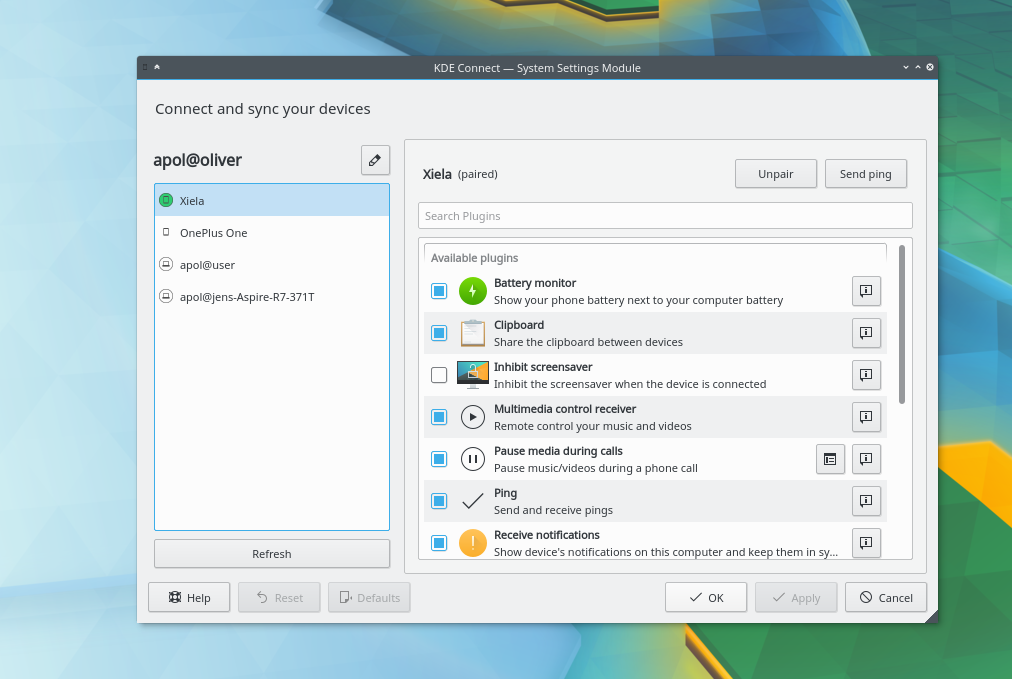
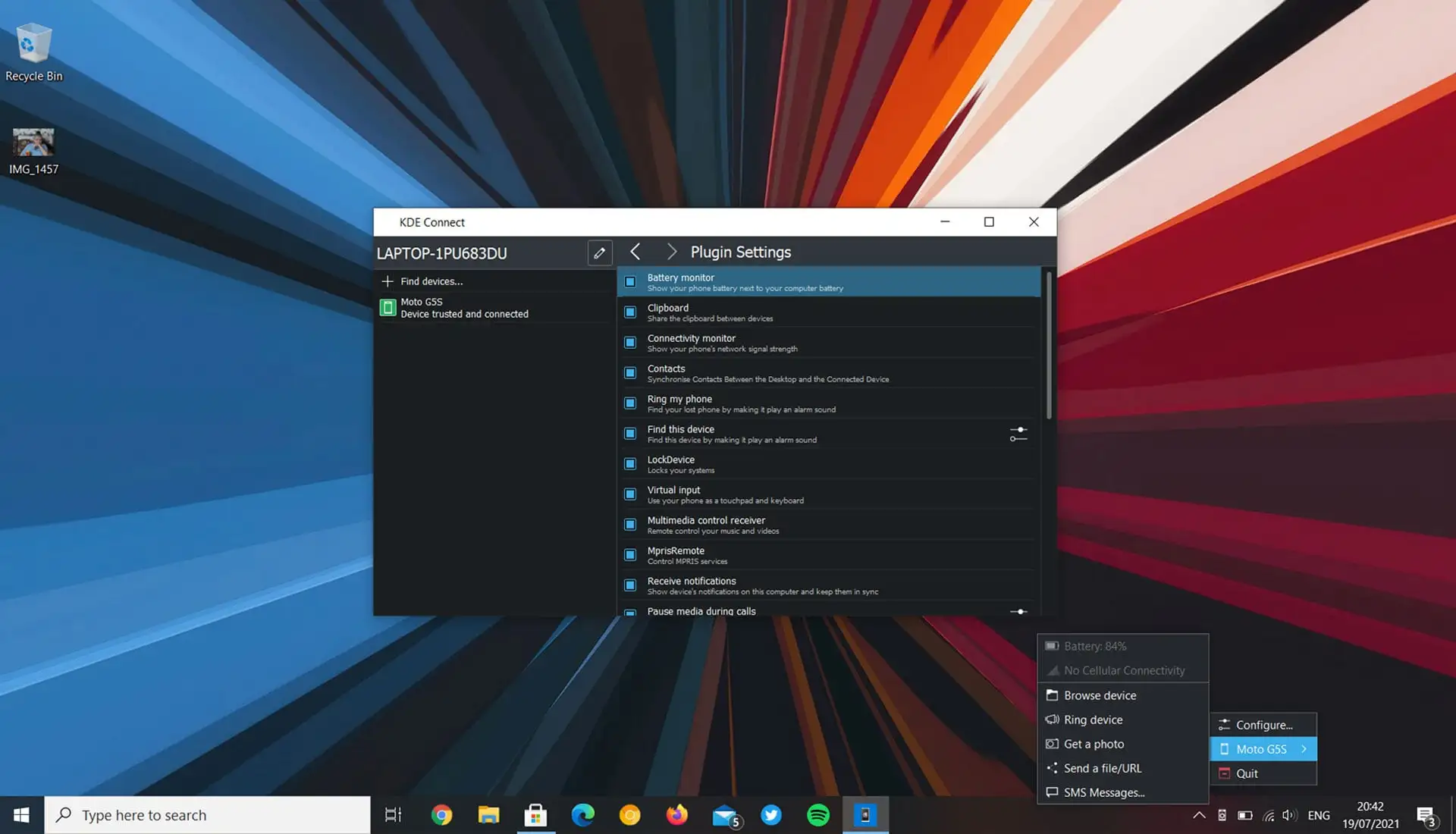
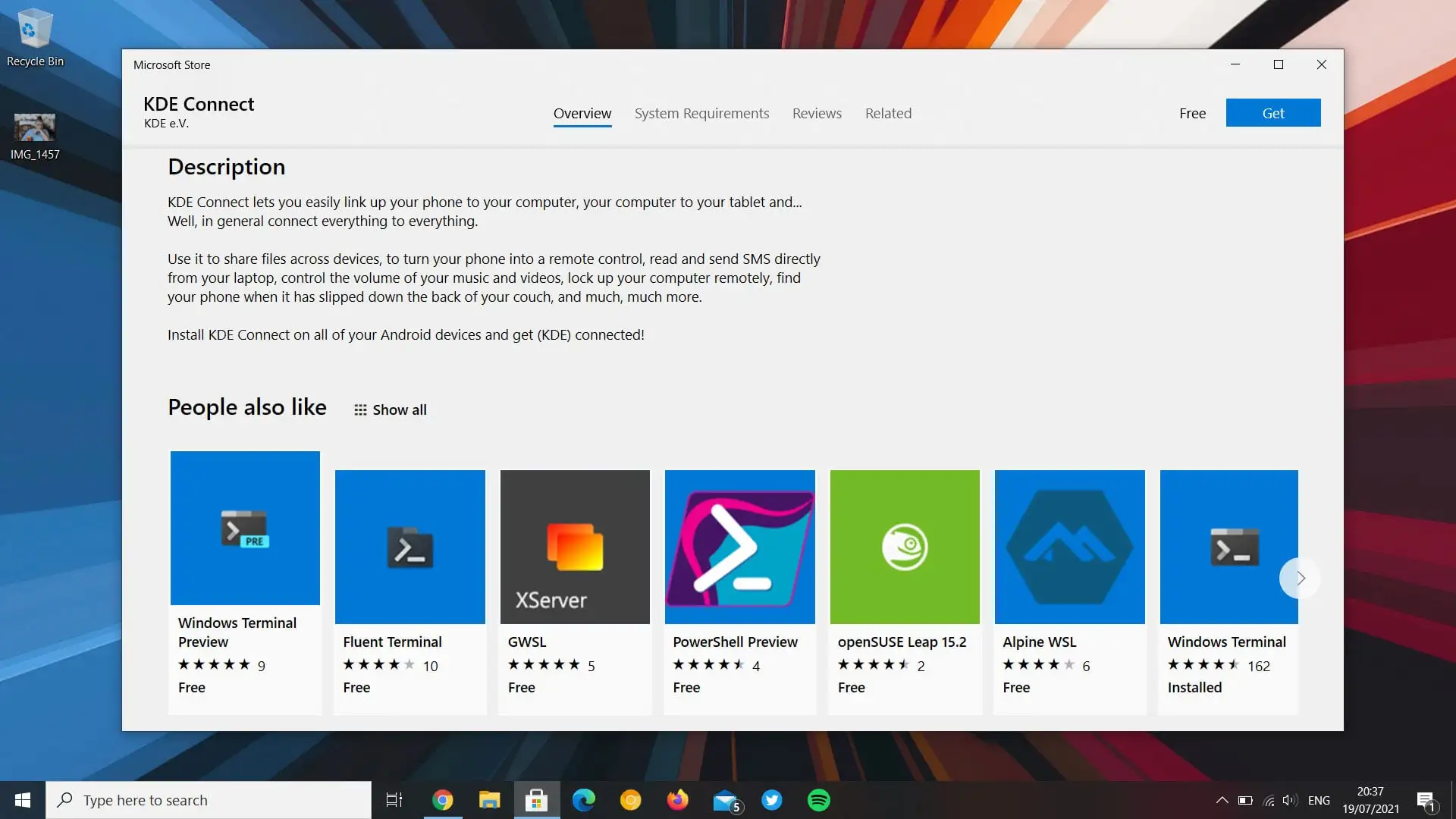
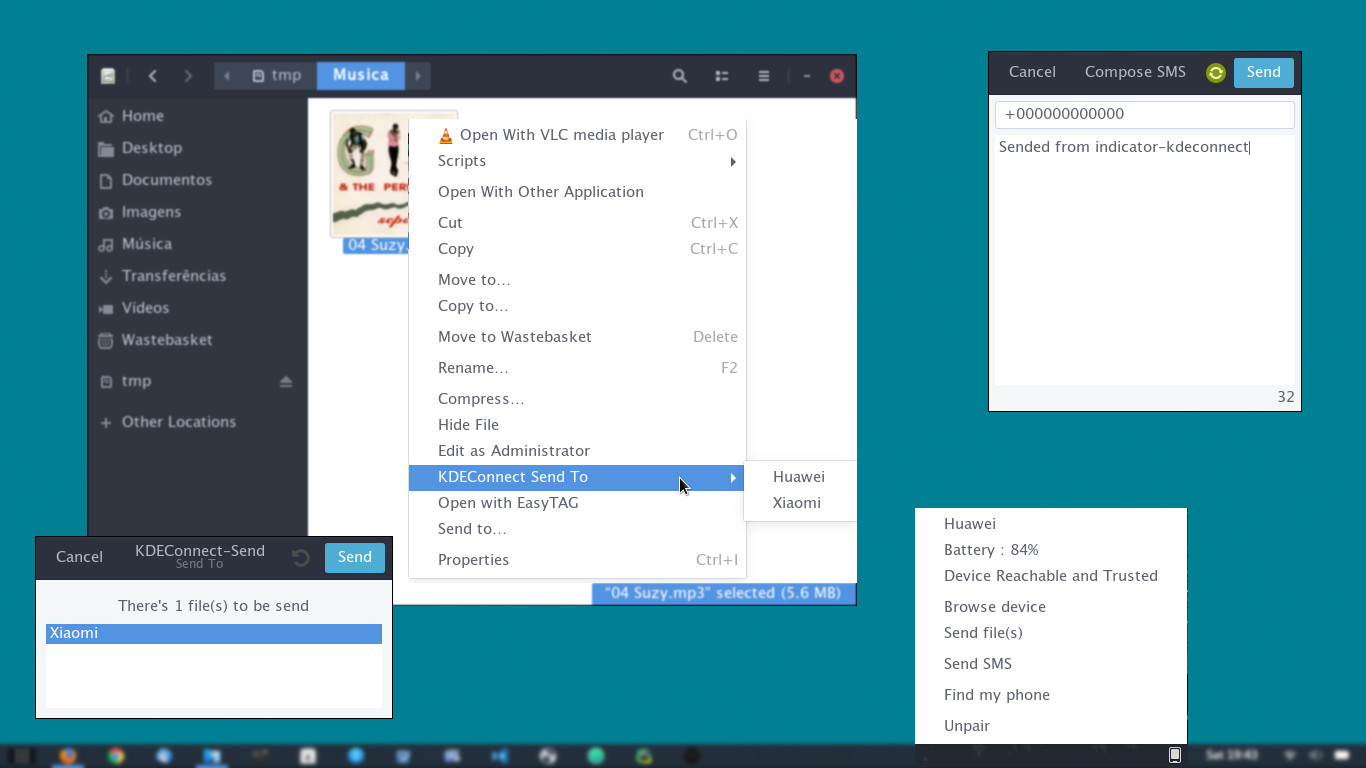
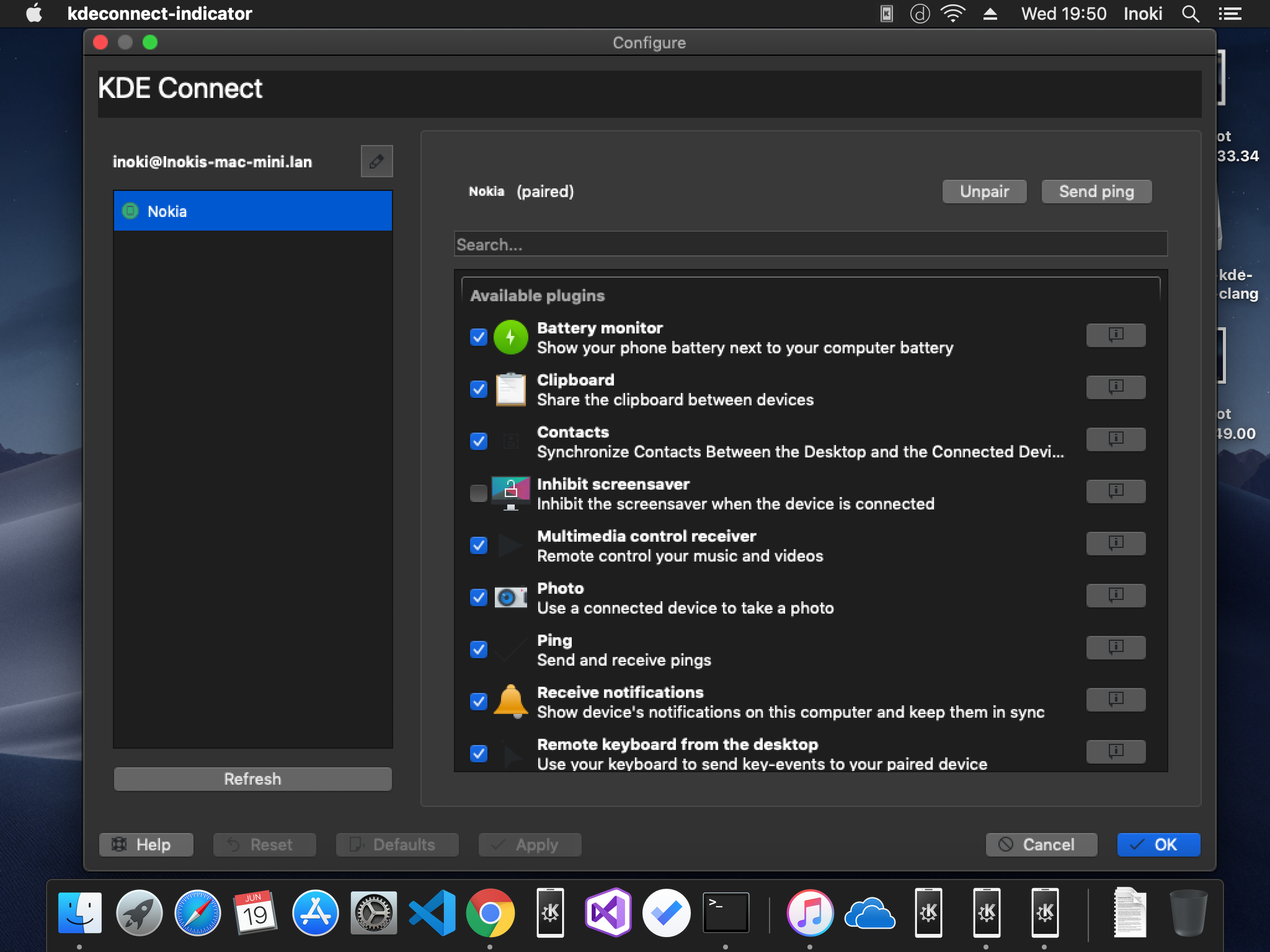
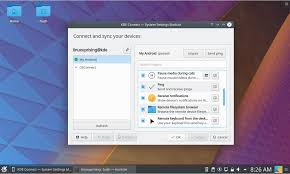
All screenshots taken from the official KDE Connect application. Your interface may vary slightly depending on your operating system and theme.
Getting Started with KDE Connect
A complete walkthrough to install, pair, and start using KDE Connect across your devices. From download to your first file transfer, this guide covers everything.
Downloading KDE Connect
Head to our download section above to grab the latest version of KDE Connect for your platform. The current stable release is version 25.04, and the Windows installer weighs in at about 81 MB. On most broadband connections, the download takes under a minute.
KDE Connect is available for Windows, Linux, macOS, Android, and iOS. For Windows, you can also install directly from the Microsoft Store by searching “KDE Connect” – this keeps the app auto-updated. If you prefer the standalone installer from our download section, pick the 64-bit .exe file. The 32-bit build exists for older hardware, but most modern PCs run 64-bit Windows 10 or 11.
On Android, install KDE Connect from the Google Play Store or from F-Droid if you prefer open-source app repositories. The Android app is around 15 MB and supports Android 8.0 and newer. For Linux, skip the manual download entirely and use your package manager instead (covered in the installation step below).
Installation Walkthrough
Windows Installation:
- Run the downloaded
.exeinstaller. If Windows SmartScreen pops up with a “Windows protected your PC” warning, click “More info” and then “Run anyway”. KDE Connect is digitally signed by the KDE Community and completely safe. - The installer opens with a language selector. Pick your language and click Next.
- Accept the license agreement (GPL v2). KDE Connect is free and open source, so there are no hidden costs.
- Choose the install location. The default
C:Program FilesKDE Connectworks for most people. Click Next. - On the components screen, leave all checkboxes as they are. The installer includes the KDE Connect indicator tray app by default.
- Click Install and wait about 30 seconds. Once finished, tick “Launch KDE Connect” and click Finish.
KDE Connect appears as a small icon in your system tray (bottom-right corner, near the clock). It starts automatically with Windows on every boot.
Linux Installation:
Open a terminal and run the command for your distribution:
# Ubuntu / Debian
sudo apt install kdeconnect

# Fedora
sudo dnf install kdeconnect

# Arch Linux
sudo pacman -S kdeconnect

# openSUSE
sudo zypper install kdeconnect
If you run KDE Plasma as your desktop, KDE Connect is often pre-installed. For GNOME desktops, the companion extension GSConnect provides equivalent features without a separate install.
macOS Installation:
Download the macOS .dmg file from our download section. Open the disk image and drag KDE Connect into your Applications folder. On first launch, macOS may ask you to confirm since it is from an “unidentified developer.” Go to System Settings > Privacy & Security and click “Open Anyway”.
sudo ufw allow 1714:1764/tcp && sudo ufw allow 1714:1764/udp
Initial Setup & Configuration
KDE Connect does not have a traditional first-run wizard. Instead, all configuration happens through device pairing and plugin management. Here is how to get your devices linked:
- Connect both devices to the same Wi-Fi network. KDE Connect uses your local network to discover nearby devices. It will not find devices on different networks or mobile data.
- Open KDE Connect on both devices. On Windows, click the KDE Connect icon in the system tray. On Android, open the KDE Connect app. Both devices should appear in each other’s “Available devices” list within a few seconds.
- Request pairing. On your phone, tap your computer’s name and press “Request Pairing”. A notification appears on your desktop asking you to accept. Click Accept. The devices are now permanently paired until you unpair them.
- Grant Android permissions. After pairing, the Android app asks for several permissions: notifications access, storage, phone, and SMS. Grant all of them so every plugin works correctly. You can adjust these later in Android Settings > Apps > KDE Connect > Permissions.
Once paired, click on your phone in the KDE Connect desktop app to open Plugin Settings. Here you see a list of available plugins with toggle switches. The most useful ones are enabled by default: Clipboard Sync, File Transfer, Media Control, Notification Sync, and Remote Input. You can disable any plugin you do not need.
Your First Tasks with KDE Connect
With pairing complete, try out KDE Connect’s core features. Here are the four workflows new users benefit from most:
Send a file from your phone to your PC: Open the KDE Connect app on your phone. Tap “Send files”, browse to a photo or document, and select it. The file appears in your desktop’s Downloads folder within seconds. You can also share any file from other Android apps using the standard Share menu and picking “Send via KDE Connect.”
Use your phone as a touchpad: In the KDE Connect app, tap “Remote Input.” Your phone screen turns into a trackpad. Drag one finger to move the mouse cursor on your PC. Single-tap to left-click, two-finger tap to right-click, and pinch to scroll. This is handy during presentations or when your PC is across the room.
Control music and video playback: Tap “Multimedia control” in the app. You see playback controls for whatever media player is running on your desktop, whether that is Spotify, VLC, or a browser tab playing YouTube. Play, pause, skip tracks, and adjust volume right from your phone.
Find your phone: Misplaced your phone somewhere in the house? In the KDE Connect desktop app, click your paired device and hit “Ring device.” Your phone rings at full volume for 30 seconds, even if it is on silent.
| Feature | How to Access (Phone) | How to Access (Desktop) |
|---|---|---|
| Send Files | Tap “Send files” in app | Right-click file > Send via KDE Connect |
| Remote Input | Tap “Remote Input” in app | Enable “Virtual Input” in plugin settings |
| Clipboard Sync | Auto-syncs copied text | Auto-syncs copied text |
| Media Control | Tap “Multimedia control” | Controls appear per-device |
| Ring Device | Tap “Ring my PC” (rings desktop) | Click “Ring device” (rings phone) |
| SMS from Desktop | Handled by phone | Click “SMS Messages” in device view |
Tips, Tricks & Best Practices
Filter notification spam: Open KDE Connect on your phone, tap the three-dot menu in the top-right corner, select “Plugin settings”, then “Notification sync.” A list of all installed apps appears. Deselect noisy apps like games or ad-supported apps so they never forward to your desktop.
Presentation remote: Open Remote Input, then tap the lock icon at the top. In this locked mode, your phone’s volume buttons act as forward/back slide controls. Combined with a long HDMI cable, this replaces a dedicated presentation clicker.
Bluetooth fallback: If your Wi-Fi network blocks device-to-device communication (common in hotels and offices), KDE Connect can pair over Bluetooth instead. Pair both devices via your OS Bluetooth settings first, then enable the Bluetooth transport option inside KDE Connect.
Run custom commands: In Plugin Settings on the desktop, enable “Run Commands.” You can define shell commands on your PC that trigger from your phone. For example, add a command to lock your workstation (loginctl lock-session on Linux, or rundll32.exe user32.dll,LockWorkStation on Windows) and run it from the couch.
Stay updated: If you installed KDE Connect from the Microsoft Store or your Linux package manager, updates arrive automatically. For the standalone Windows installer, check the download section periodically for new releases. The KDE Community publishes updates roughly every 4 months alongside the broader KDE Gear release cycle.
Get help: The official KDE Connect documentation lives at userbase.kde.org/KDEConnect. For community support, check out the KDE subreddit (r/kde) or the KDE Discuss forum at discuss.kde.org.
Ready to connect your devices? Download KDE Connect and start sharing files, notifications, and controls in under five minutes.
Frequently Asked Questions
Answers to the most common questions about downloading, installing, and using KDE Connect on your devices.
Is KDE Connect safe to download?
Yes, KDE Connect is safe to download. It is a fully open-source project maintained by the KDE Community under the GPL v2+ license. The entire source code is publicly available on KDE’s GitLab repository, meaning thousands of developers and security researchers can audit every line of code at any time.
KDE Connect version 25.04 (the latest desktop release as of early 2026) has been scanned by VirusTotal and passes with a clean report across all major antivirus engines. The Windows installer weighs approximately 81 MB and is digitally signed through the official KDE build infrastructure. On Android, the app is distributed through both Google Play Store and F-Droid, both of which run their own security checks before listing apps.
- Download only from official sources: our download section, the KDE website, Google Play, F-Droid, or the Apple App Store
- Avoid third-party download sites that repackage the installer with bundled adware
- On Windows, if SmartScreen shows a warning, click “More info” then “Run anyway” – this happens because KDE is a smaller publisher compared to Microsoft or Google
- KDE Connect communicates only over your local Wi-Fi network, never sending data through external servers
Pro tip: One security vulnerability (CVE-2025-66270) was discovered and patched in version 25.12, which fixed a device impersonation issue. Always keep KDE Connect updated to the latest version for the best security.
For a full breakdown of supported platforms and file sizes, check our system requirements section.
Is KDE Connect free from malware and spyware?
KDE Connect is completely free from malware and spyware. As an open-source project under the GPL v2+ license, every update is built from publicly visible source code. There are no hidden data collection modules, no advertising SDKs, and no telemetry that phones home to external servers.
Unlike many free apps that monetize through data harvesting, KDE Connect operates entirely on your local network. File transfers, clipboard sharing, and notification sync all happen directly between your devices over Wi-Fi using encrypted TLS connections. No data ever passes through KDE’s servers or any third-party cloud infrastructure. The Android app on Google Play has over 1 million downloads and maintains a 4.2+ star rating with no malware flags. The F-Droid version is built from source by F-Droid’s own reproducible build system, providing an additional layer of verification.
- All device-to-device communication uses TLS encryption
- Pairing requires manual approval on both devices before any data is shared
- You can disable individual plugins (clipboard, notifications, SMS) to control exactly what data flows between devices
- The app requests only the Android permissions it needs for each plugin, and you can deny any of them
Pro tip: If you want maximum transparency, install KDE Connect from F-Droid instead of Google Play. F-Droid builds the APK directly from the public source code, so you can verify that the binary matches the published source.
See our features overview for a detailed look at each plugin and what permissions it uses.
Where is the official safe download for KDE Connect?
The official download for KDE Connect is available right here on our download page, which links directly to the KDE project’s official releases. You can also get it from the KDE Connect website at kdeconnect.kde.org/download.html.
KDE Connect is distributed through several official channels depending on your platform. The Windows installer (approximately 81 MB) is hosted on KDE’s download infrastructure. On Android, KDE Connect is available from Google Play Store (package: org.kde.kdeconnect_tp) and from F-Droid for users who prefer open-source app stores. iOS users can find KDE Connect on the Apple App Store. For Linux, it ships in the default repositories of most major distributions including Ubuntu, Fedora, Arch Linux, and openSUSE.
- Windows: Download the .exe installer from our download section or the Microsoft Store
- macOS: Available via Homebrew with
brew install --cask kde-connect - Linux: Install via your package manager (apt, dnf, pacman) or Flatpak
- Android: Google Play Store or F-Droid
- iOS: Apple App Store (search “KDE Connect”)
Pro tip: Never download KDE Connect from random software aggregator sites like Softonic, CNET Download, or FileHippo. These sites sometimes wrap legitimate installers in their own download managers that bundle unwanted software.
Visit our download section for direct links to every platform with version details and file sizes.
Does KDE Connect work on Windows 10 and Windows 11?
Yes, KDE Connect works on both Windows 10 and Windows 11. The desktop client version 25.04 runs natively on Windows without requiring any Linux subsystem or virtual machine.
On Windows, KDE Connect installs as a standard desktop application with a system tray icon. It supports all the major features you get on Linux: file sharing, notification sync, clipboard sharing, media control, virtual touchpad, and the Find My Phone function. The Windows installer is around 81 MB and includes all required Qt6 and KDE Frameworks libraries bundled together, so you do not need to install anything else separately. Windows 10 version 1903 or later is recommended, though older builds may also work.
- Windows Firewall usually prompts you to allow KDE Connect on first launch – click “Allow access” for both private and public networks
- If the firewall prompt does not appear, manually add rules for TCP/UDP ports 1714 through 1764
- KDE Connect runs at startup by default via a system tray icon – right-click the icon to access paired devices
- On Windows 11, some users report that the “Focus Assist” (Do Not Disturb) feature blocks notification sync – disable it if notifications are not appearing
Pro tip: If you use a VPN on your Windows PC, KDE Connect may stop discovering devices because VPNs often isolate your device from the local network. Split-tunnel your VPN to exclude local traffic, or disconnect the VPN when using KDE Connect.
Check our system requirements for the full list of supported Windows versions and hardware specs.
What are the minimum system requirements for KDE Connect?
KDE Connect has modest system requirements and runs on nearly any modern computer or phone. The desktop application needs around 150 MB of disk space after installation and uses minimal RAM during normal operation.
On the desktop side, KDE Connect version 25.04 requires a 64-bit operating system: Windows 10 (version 1903+) or Windows 11, macOS 11 Big Sur or later, or any recent Linux distribution with Qt6 support. The application idles at roughly 30-50 MB of RAM and has negligible CPU usage unless actively transferring files. On Android, KDE Connect version 1.35 requires Android 7.0 (Nougat) or higher. The iOS app requires iOS 16 or later. All devices must be connected to the same local Wi-Fi network for discovery and pairing.
- Desktop (Windows): Windows 10/11 64-bit, 150 MB disk space, any modern CPU
- Desktop (Linux): Qt6 + KDE Frameworks 6, available in most distro repos
- Desktop (macOS): macOS 11+ on Intel or Apple Silicon
- Android: Android 7.0+, approximately 30 MB storage
- iOS: iOS 16+, approximately 25 MB storage
- Network: Both devices on the same Wi-Fi network (UDP/TCP ports 1714-1764)
Pro tip: KDE Connect works fine on low-end hardware. Even a 10-year-old laptop with 2 GB of RAM can run it without issues. The bottleneck is usually network speed for file transfers, not device performance.
For detailed hardware specs and recommendations, see our system requirements table.
Does KDE Connect work on iPhone and iOS?
Yes, KDE Connect has an iOS app available on the Apple App Store. However, the iOS version is more limited compared to the Android app due to Apple’s restrictions on background processes and inter-app communication.
The KDE Connect iOS app (version 0.5.x as of early 2026) supports core features like file sharing, clipboard sync, and media remote control. You can send files from your iPhone to your PC and browse shared content. The app requires iOS 16 or later and works with iPhones, iPads, and iPod Touch devices. It pairs with desktop KDE Connect on Linux, Windows, and macOS using the same local network discovery protocol over Wi-Fi. The iOS app does not support some features that Android users get, such as SMS messaging from desktop, full notification sync, or running commands remotely.
- Supported on iOS: File transfer, clipboard sharing, media control, ping device, share URLs
- Not available on iOS: SMS from desktop, notification sync, remote keyboard input, run commands, telephony integration
- Apple’s background process limits mean the iOS app must be open (or recently used) for reliable connectivity
- The iOS app is still actively developed by KDE volunteers – new features are added with each release
Pro tip: If you need full notification sync between iPhone and a PC, consider pairing KDE Connect with Apple’s native Handoff features for a hybrid setup. KDE Connect handles file transfers well on iOS, while Handoff manages clipboard and notification continuity within the Apple ecosystem.
For more details on platform-specific features, see our features section.
Is KDE Connect completely free to download and use?
Yes, KDE Connect is 100% free to download and use on every platform. There is no paid tier, no subscription, no in-app purchases, and no feature gating behind a paywall.
KDE Connect is released under the GNU General Public License v2 or later (GPL v2+), which guarantees that the software will remain free and open source forever. Unlike competitors such as AirDroid (which charges $3.99/month for premium remote features) or Pushbullet (which locks file sharing above 25 MB behind a $4.99/month Pro plan), KDE Connect gives you unlimited file transfers, full notification sync, clipboard sharing, media control, and every other feature at zero cost. The project is funded by the KDE Community (KDE e.V., a German non-profit) through donations and sponsorships, not through monetizing users.
- No trial period – all features are available from the moment you install
- No ads anywhere in the app on any platform
- No file size limits on transfers (limited only by your storage and network speed)
- No account registration required – just install, pair, and go
- No premium version or upsell – the free version is the only version
Pro tip: If you appreciate KDE Connect, consider donating to KDE e.V. at kde.org/community/donations. Your contribution directly funds the developers who maintain KDE Connect and other KDE projects.
Ready to get started? Head to our download section to grab KDE Connect for your platform.
What license does KDE Connect use and can I modify it?
KDE Connect uses the GNU General Public License version 2 or later (GPL v2+), one of the most widely used open-source licenses in the world. You can freely use, study, modify, and redistribute the software.
The GPL v2+ license means the source code is always available. Developers who want to build custom plugins, add features, or adapt KDE Connect for specific use cases can fork the repository and make their own modifications. The KDE Connect source code is hosted on KDE’s GitLab instance (invent.kde.org) and mirrored on GitHub. The license requires that any modified version you distribute must also carry the GPL v2+ license, ensuring the software and its derivatives stay open. Several third-party projects have already built on KDE Connect’s protocol, including GSConnect (a GNOME Shell extension that reimplements KDE Connect for GNOME desktop users).
- The source code for the Android app, iOS app, and desktop client are all available in separate repositories
- Community contributions are welcome through KDE’s merge request process on GitLab
- The KDE Connect protocol itself is documented, allowing other developers to create compatible implementations
- GSConnect for GNOME is a popular example of a third-party implementation using the same protocol
Pro tip: If you want to write your own KDE Connect plugin, check the developer documentation at community.kde.org/KDEConnect. The plugin API is straightforward and lets you add new functionality without modifying the core app.
Learn more about KDE Connect’s capabilities in our features section.
How do I download and install KDE Connect step by step?
Installing KDE Connect takes about two minutes on any platform. Download the installer from our download section, run it, and pair your devices.
The installation process differs slightly by platform. On Windows, you download a standard .exe installer (approximately 81 MB) that bundles all dependencies. On Linux, KDE Connect ships in most distribution repositories and installs in one command. On Android, it is a regular app store download. The key step after installation is pairing: both devices must be on the same Wi-Fi network, and you need to accept the pairing request on both sides. The entire process from download to a working connection typically takes under five minutes.
- Go to our download section and grab the installer for your operating system
- Windows: Run the .exe installer, accept the UAC prompt, click through the wizard (default settings are fine), and allow firewall access when prompted
- Linux: Open a terminal and run
sudo apt install kdeconnect(Ubuntu/Debian) orsudo dnf install kdeconnect(Fedora) - Android: Search “KDE Connect” on Google Play Store and tap Install
- Open KDE Connect on both your computer and phone – they should detect each other automatically within a few seconds
- Tap your computer’s name on the phone app, then “Request Pairing” – accept the pairing on your desktop
Pro tip: If devices do not detect each other automatically, tap the three-dot menu in the Android app and select “Add devices by IP.” Enter your computer’s local IP address (find it with ipconfig on Windows or ip addr on Linux).
For a detailed walkthrough, see our Getting Started guide.
How do I pair my phone with my computer using KDE Connect?
To pair your phone with your computer, make sure both devices are on the same Wi-Fi network, open KDE Connect on both, and accept the pairing request from either side.
KDE Connect uses UDP broadcast on ports 1714-1764 to discover devices on the same local network. Once both the desktop client and the mobile app are running, your phone should appear in the desktop app’s device list (and vice versa) within 5-10 seconds. Pairing creates a persistent encrypted connection that survives app restarts – you only need to pair once per device combination. After pairing, KDE Connect stores a unique device certificate for secure future connections without re-pairing.
- Confirm both devices are connected to the same Wi-Fi network (not a guest network or different VLANs)
- Open KDE Connect on your computer – it runs in the system tray on Windows
- Open the KDE Connect app on your phone
- Your computer should appear in the “Available devices” list on your phone
- Tap your computer’s name and select “Request pairing”
- On your computer, a notification will pop up asking you to accept the pairing – click “Accept”
- Both devices should now show as “Paired” with a green indicator
Pro tip: If your phone does not appear in the device list, your firewall is likely blocking KDE Connect. On Linux, run sudo ufw allow 1714:1764/udp && sudo ufw allow 1714:1764/tcp to open the necessary ports. On Windows, check that KDE Connect has both “Private” and “Public” network access in Windows Firewall settings.
For troubleshooting pairing problems, see the Getting Started guide.
How to fix KDE Connect installation errors on Windows?
Most KDE Connect installation errors on Windows come from Windows SmartScreen blocking the installer or missing Visual C++ runtime libraries. Both issues are straightforward to fix.
The KDE Connect Windows installer is signed but may still trigger SmartScreen warnings because KDE is not a major commercial publisher. On rare occasions, antivirus software like Windows Defender may quarantine the installer file. If the installation completes but KDE Connect fails to launch, it is usually because the Microsoft Visual C++ 2015-2022 Redistributable is missing. The current Windows installer (version 25.04, about 81 MB) bundles most dependencies, but older versions required manual runtime installation.
- SmartScreen block: Click “More info” on the SmartScreen popup, then click “Run anyway” to proceed with the installation
- Antivirus quarantine: Add an exception for the KDE Connect installer and installation folder (usually
C:Program FilesKDE Connect) in your antivirus settings - Missing runtime: Download and install the latest Visual C++ Redistributable from Microsoft’s official site if the app crashes on launch
- Permission error: Right-click the installer and select “Run as administrator” if you get an access denied error
- Corrupted download: Delete the downloaded file and re-download from our download section – verify the file size is approximately 81 MB
Pro tip: If you prefer to avoid the .exe installer entirely, KDE Connect is also available from the Microsoft Store on Windows 10/11. The Store version auto-updates and does not trigger SmartScreen warnings.
See our Getting Started guide for a complete installation walkthrough.
KDE Connect devices not finding each other – how to fix?
When KDE Connect devices cannot find each other, the problem is almost always a firewall blocking discovery traffic or the devices being on different network segments. This is the single most common issue users report.
KDE Connect uses UDP and TCP ports 1714 through 1764 for device discovery and communication. If your firewall blocks these ports, your devices will not see each other even though they are on the same Wi-Fi. VPNs are another frequent culprit – they often route all traffic through a tunnel that bypasses the local network. Guest Wi-Fi networks, corporate networks with client isolation enabled, and mesh networks with separate bands can also prevent discovery. On Linux, both iptables/nftables and firewalld need to have the KDE Connect service allowed.
- Check your network: Verify both devices show the same gateway IP (router address) – if they differ, you are on different networks
- Disable VPN: Temporarily turn off any VPN on both devices and try again
- Open firewall ports (Linux): Run
sudo ufw allow 1714:1764/udp && sudo ufw allow 1714:1764/tcp && sudo ufw reload - Open firewall ports (Windows): Go to Windows Defender Firewall > Allow an app > find KDE Connect > enable for Private and Public
- Manual IP pairing: In the mobile app, tap the three-dot menu > “Add devices by IP” and enter your computer’s local IP address
- Restart the daemon (Linux): Run
killall kdeconnectdthen launch KDE Connect again
Pro tip: On some routers, “AP isolation” or “Client isolation” is enabled by default, which prevents devices from seeing each other on Wi-Fi. Log into your router settings and disable this feature under the wireless configuration.
For a full troubleshooting walkthrough, see our Getting Started guide.
Why does KDE Connect keep disconnecting?
Frequent disconnections in KDE Connect are usually caused by Android battery optimization killing the background process or an unstable Wi-Fi connection between devices.
Android aggressively closes background apps to save battery, and KDE Connect needs to stay running to maintain its connection. Samsung, Xiaomi, Huawei, and OnePlus phones are especially aggressive with battery optimization. On the desktop side, laptops that switch between Wi-Fi and Ethernet, or machines that enter sleep mode, will naturally drop the KDE Connect session. The connection also drops if either device switches networks (for example, moving from 2.4 GHz to 5 GHz band on the same router if they are configured as separate SSIDs).
- Disable battery optimization for KDE Connect: Go to Android Settings > Apps > KDE Connect > Battery > set to “Unrestricted” or “No restrictions”
- Lock the app in recents: On Samsung/Xiaomi, open KDE Connect, tap the recent apps button, tap the app icon, and select “Lock” to prevent the system from killing it
- Disable adaptive battery: On Pixel phones, go to Settings > Battery > Adaptive preferences > turn off Adaptive Battery
- Keep both devices on the same band: If your router broadcasts 2.4 GHz and 5 GHz as separate networks, connect both devices to the same one
- Check power settings on desktop: Prevent your computer from sleeping while paired by adjusting power settings
Pro tip: On Android, check dontkillmyapp.com for device-specific instructions on preventing your phone manufacturer from killing background apps. Each brand has different steps, and this site covers all of them.
Review our features section for details on which plugins run in the background.
KDE Connect stopped working after an update – how to fix?
If KDE Connect stops working after a system or app update, the fix usually involves re-pairing your devices or resetting the KDE Connect configuration. This happens occasionally after major Android or desktop updates that change network or security settings.
Android 14 updates in late 2024 caused widespread KDE Connect crashes for many users. The KDE team released version 1.32.5 on Android to address these compatibility issues. On the desktop side, major distribution upgrades (for example, upgrading from Ubuntu 23.10 to 24.04 or Fedora 39 to 40) can reset firewall rules or update Qt libraries in ways that break existing KDE Connect configurations. Windows updates occasionally reset firewall rules, requiring you to re-allow KDE Connect through Windows Defender Firewall.
- Update the app: Make sure KDE Connect is updated to the latest version on all devices (v25.04 on desktop, v1.35 on Android)
- Unpair and re-pair: Remove the pairing on both devices, then pair again from scratch
- Clear app cache (Android): Go to Settings > Apps > KDE Connect > Storage > Clear Cache (do not clear data unless necessary)
- Reset config (Linux): Delete the folder
~/.config/kdeconnectand restart the KDE Connect daemon - Check firewall (Windows): After a Windows Update, verify KDE Connect is still allowed in Windows Defender Firewall
- Downgrade if needed: If a specific version causes crashes, install the previous version from F-Droid (which keeps version history)
Pro tip: Before doing a major OS update, note down your paired device names. After the update, a quick unpair-and-repair cycle takes 30 seconds and resolves most post-update connectivity issues.
For step-by-step setup after a reset, see our Getting Started guide.
How do I update KDE Connect to the latest version?
The update process depends on your platform. On Android and iOS, updates come through your app store. On Windows, you need to download the latest installer. On Linux, your package manager handles updates automatically.
The latest desktop version is 25.04 and the latest Android version is 1.35 (as of early 2026). KDE Connect does not have a built-in auto-updater on Windows, so you need to check for new versions manually or install it from the Microsoft Store (which auto-updates). On Linux, KDE Connect updates arrive through your standard system update process alongside other packages. It is important to keep both the desktop and mobile apps updated to the same generation to avoid compatibility issues between protocol versions.
- Android: Open Google Play Store > tap your profile > Manage apps > Updates available > update KDE Connect
- iOS: Open App Store > tap your profile > scroll to available updates > update KDE Connect
- Windows (installer): Download the latest .exe from our download section and run it over the existing installation
- Windows (Store): The Microsoft Store updates KDE Connect automatically
- Linux (Ubuntu/Debian): Run
sudo apt update && sudo apt upgrade kdeconnect - Linux (Fedora): Run
sudo dnf upgrade kdeconnect - Linux (Flatpak): Run
flatpak update org.kde.kdeconnect
Pro tip: Subscribe to KDE’s release announcements at kde.org/announcements to know when new versions drop. Major releases often include important security patches like the CVE-2025-66270 fix in version 25.12.
Get the latest version now from our download section.
What is new in the latest version of KDE Connect?
KDE Connect version 25.04 (desktop) brings improved Windows support, better Bluetooth connectivity, and enhanced file transfer reliability. The Android app version 1.35 includes bug fixes for Android 14 and 15 compatibility.
Recent releases have focused on stability and cross-platform parity. The Windows client received significant attention in the 25.x release cycle, with improved system tray integration, faster device discovery, and reduced memory usage. The iOS app (v0.5.x) added clipboard sync and improved file transfer speeds. On Linux, the transition from Qt5 to Qt6 in recent versions improved performance and future-proofed the codebase. One critical update was version 25.12, which patched CVE-2025-66270 – a vulnerability that could allow an attacker who knew a paired device’s ID to impersonate that device and bypass authentication.
- Desktop 25.04: Qt6 migration complete, improved Windows tray behavior, Bluetooth transport improvements
- Desktop 25.12: Critical security fix (CVE-2025-66270), stability improvements
- Android 1.35: Android 14/15 compatibility fixes, reduced battery drain, faster file transfers
- iOS 0.5.x: Added clipboard sync, improved connection reliability, UI refresh
- Protocol: Improved TLS handshake for faster initial pairing
Pro tip: You can read the full changelog for every KDE Connect release on KDE’s GitLab repository. Each release tag includes a detailed list of merged changes and fixed bugs.
Download the latest version from our download section to get all these improvements.
KDE Connect vs AirDroid – which is better for phone-to-PC connectivity?
KDE Connect is better for users who want a free, privacy-focused, local-network solution with deep desktop integration. AirDroid is better for users who need remote access over the internet and do not mind paying for premium features.
KDE Connect operates entirely over your local Wi-Fi network, which means transfers are fast (limited only by your router speed), your data never touches external servers, and there are no file size limits. AirDroid routes traffic through its cloud servers, which enables remote access from anywhere but introduces latency, privacy concerns, and a 200 MB/month transfer limit on the free plan. AirDroid Personal premium costs $3.99/month and unlocks remote camera access, screen mirroring, and unlimited file transfers. KDE Connect gives you all its features for free, forever.
- Price: KDE Connect = free (all features). AirDroid = free (limited) / $3.99/mo (premium)
- Privacy: KDE Connect = local only, no cloud. AirDroid = cloud-based, data passes through AirDroid servers
- File transfers: KDE Connect = unlimited, local speed. AirDroid = 200 MB/mo free, unlimited on premium
- Remote access: KDE Connect = local network only. AirDroid = works over internet
- Platform support: KDE Connect = Linux/Windows/macOS/Android/iOS. AirDroid = Windows/macOS/Android/Web
- Linux support: KDE Connect = excellent. AirDroid = none (web client only)
Pro tip: You can use both. Install KDE Connect for daily local sync (notifications, clipboard, media control) and keep AirDroid for the rare occasions when you need to access your phone remotely from a different network.
See our features section for a complete list of what KDE Connect offers.
Can I use KDE Connect over the internet instead of just local Wi-Fi?
KDE Connect is designed for local network use, but you can make it work over the internet by setting up a VPN tunnel between your devices. This is not officially supported but works reliably with the right setup.
The reason KDE Connect requires a local network is security: device discovery uses UDP broadcast on ports 1714-1764, which only works within the same network segment. To use KDE Connect remotely, you need to create a virtual local network between your devices using a VPN solution. WireGuard, Tailscale, and ZeroTier are popular options that create encrypted peer-to-peer tunnels, making your devices appear as if they are on the same local network regardless of physical location. Tailscale is the easiest option since it handles NAT traversal automatically and has free plans for personal use.
- Install Tailscale (or WireGuard/ZeroTier) on both your phone and computer
- Sign in with the same account on both devices to join them to the same virtual network
- Note the Tailscale IP addresses assigned to each device (usually 100.x.x.x)
- In KDE Connect on your phone, use “Add devices by IP” and enter your computer’s Tailscale IP
- Accept the pairing request on both devices as you normally would
Pro tip: Tailscale’s free tier supports up to 100 devices and gives each device a stable IP address that persists across network changes. This means your KDE Connect pairing survives even when you move between home, office, and mobile networks.
For basic local network setup, start with our Getting Started guide.
How do I use KDE Connect as a presentation remote?
KDE Connect has a built-in presentation remote plugin that turns your phone into a wireless clicker for slideshows. It works with LibreOffice Impress, PowerPoint, Google Slides, and any application that responds to arrow key presses.
The presentation remote sends keyboard commands (left arrow for previous slide, right arrow for next slide) from your phone to your computer over the KDE Connect connection. This means it works with virtually any presentation software on any operating system. The plugin also shows a pointer feature on some platforms that lets you highlight areas of the screen. File size of slides does not matter since KDE Connect only sends keyboard commands, not the actual presentation data. The remote works from anywhere within your Wi-Fi range, typically 30-50 meters indoors.
- Make sure KDE Connect is paired and connected between your phone and presentation computer
- On your phone, open the KDE Connect app and tap on your paired computer
- Select “Presentation Remote” from the list of available plugins
- Open your presentation (PowerPoint, Impress, Google Slides in fullscreen) on your computer
- Use the forward and back buttons on your phone screen to navigate slides
- Some versions also include a pointer/laser feature – tap the pointer icon to enable it
Pro tip: Before a presentation, disable notification sync temporarily from KDE Connect settings on your phone. This prevents embarrassing notifications from appearing on the projected screen during your talk.
Explore all available plugins in our features section.
How do I completely uninstall KDE Connect from my computer?
To completely remove KDE Connect, uninstall the application through your system’s standard method, then delete the configuration folder to remove stored device pairings and settings.
On Windows, KDE Connect installs to C:Program FilesKDE Connect by default and stores configuration data in your user profile. The standard Windows uninstaller removes the application files but may leave behind configuration data and firewall rules. On Linux, the package manager handles removal cleanly, but the user configuration directory persists unless you delete it manually. On macOS, drag the app to Trash and delete the config folder. The total disk space freed after a clean uninstall is approximately 150-200 MB on Windows and 50-80 MB on Linux.
- Windows: Go to Settings > Apps > Installed apps > find KDE Connect > click Uninstall. Then delete
%LOCALAPPDATA%kdeconnect - Linux (Ubuntu/Debian): Run
sudo apt remove --purge kdeconnectthen delete~/.config/kdeconnect - Linux (Fedora): Run
sudo dnf remove kdeconnectthen delete~/.config/kdeconnect - macOS: Move KDE Connect from Applications to Trash, then delete
~/Library/Application Support/kdeconnect - Android: Long-press the app icon > Uninstall, or go to Settings > Apps > KDE Connect > Uninstall
- Optionally, remove firewall rules you created for ports 1714-1764
Pro tip: Before uninstalling, unpair all devices from within the KDE Connect app. This removes the stored device certificates on the paired devices, preventing orphaned pairings that might confuse future reinstallations.
If you change your mind, reinstalling is quick – visit our download section.
Still have questions? Visit the Getting Started guide or check the KDE Connect community forums for help.